One Dashboard to Rule Them All: A Guide to Google Ads Business Manager

Why Google Ads Business Manager Changes Everything for Multi-Account Advertisers
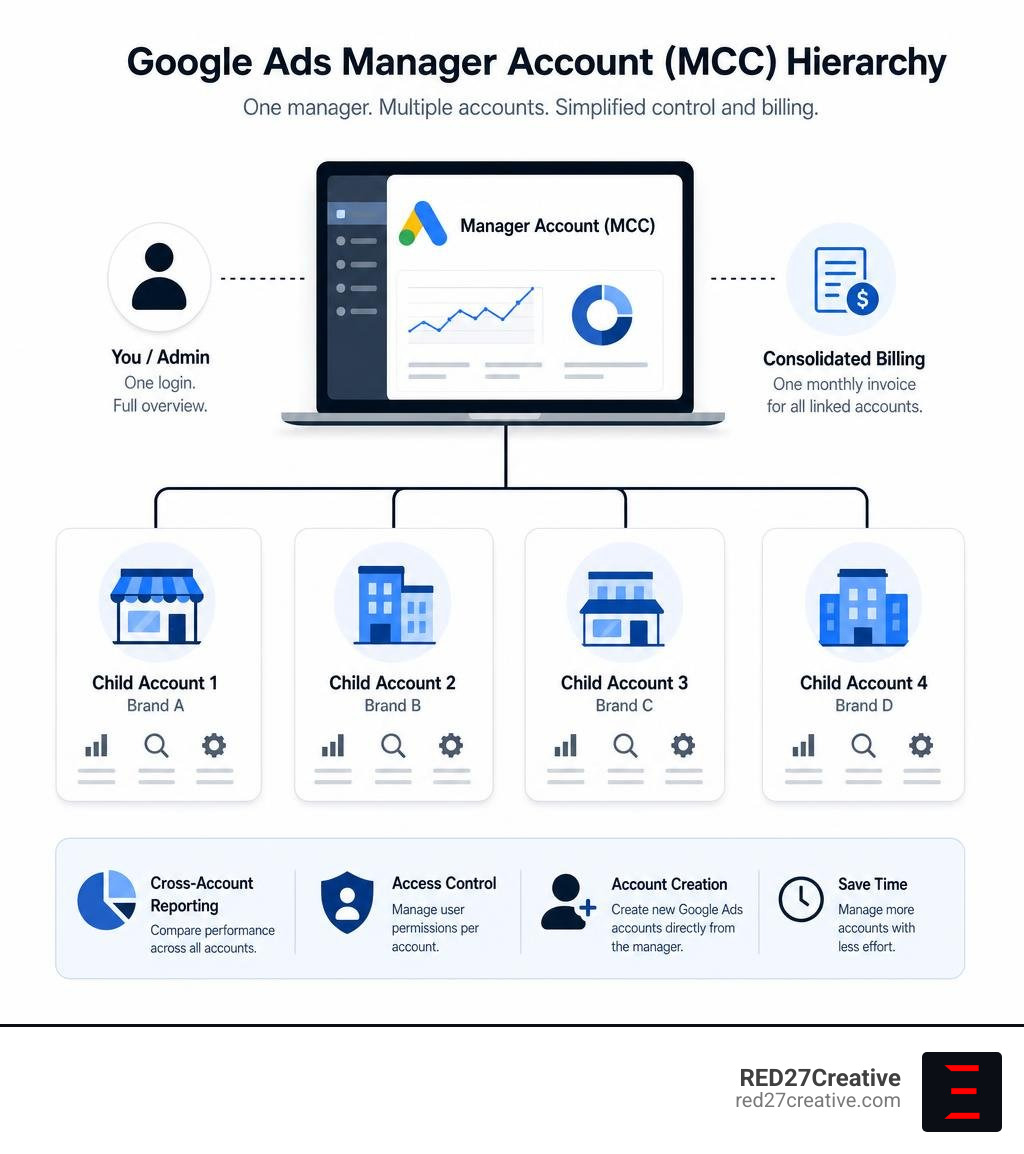
Google Ads Business Manager — specifically the Google Ads Manager Account, formerly known as My Client Center (MCC) — is a single dashboard that lets you view, manage, and report on multiple Google Ads accounts using one login.
Quick answer: What is Google Ads Business Manager?
| Feature | What It Does |
|---|---|
| Single login | Access all linked Google Ads accounts from one place |
| Consolidated billing | Receive one monthly invoice for multiple accounts |
| Cross-account reporting | Compare performance across all accounts at a glance |
| Access control | Grant and restrict user permissions per account |
| Account creation | Build new client accounts directly from the dashboard |
If you’re running ads for more than one brand, location, or client, logging in and out of separate accounts is a massive time drain. A Manager Account solves that. It’s not an upgrade to an existing account — it’s a new umbrella structure that sits above all your individual accounts.
This is especially valuable for marketing directors and business owners managing multiple campaigns across regions or brands. One dashboard. Full control. No juggling.
I’m Kiel Tredrea, founder of RED27Creative, and over more than 20 years of helping businesses grow through integrated digital strategy, I’ve used the Google Ads Business Manager framework to help clients — from local service companies to national B2B brands — run leaner, smarter advertising operations. In the sections ahead, I’ll walk you through everything you need to know to set it up and use it effectively.
Discover more about google ads business manager:
Demystifying the Google Ads Business Manager: What is an MCC?
Historically, Google called this tool “My Client Center” or MCC. While Google has rebranded and updated its interfaces leading up to July 2026, many seasoned digital marketers still use the terms MCC and Manager Account interchangeably.
At its core, a Google Ads Manager Account is an administrative umbrella designed to link and oversee multiple individual Google Ads accounts. A standard Google Ads account is where you build campaigns, write ad copy, and set budgets for a single business entity.
In contrast, a Manager Account does not run its own ads directly. Instead, it acts as a centralized command center to view performance metrics, manage billing, and control user access across those individual child accounts.
| Feature | Standard Google Ads Account | Google Ads Manager Account (MCC) |
|---|---|---|
| Primary Purpose | Creating and running specific ad campaigns | Centralized management of multiple ad accounts |
| Direct Advertising | Yes, runs active ad campaigns | No, serves only as an administrative shell |
| Billing Management | Individual payment methods per account | Consolidated billing and monthly invoicing |
| Access Control | Managed on an individual user-by-user basis | Centralized access distribution to multiple accounts |
| Reporting Limits | Limited to the active account’s performance | Cross-account reporting and aggregated dashboards |
Understanding this structural difference is key to organizing your digital marketing assets correctly. Utilizing a Manager Account is not about replacing your current setup, but rather organizing your existing assets under a more professional, scalable hierarchy.
If you want to learn more about structuring your individual accounts, check out our guide on Google Ads Account Management. For a comprehensive look at how these accounts function, you can also read the official documentation on Manager Accounts (MCC): About Google Ads manager accounts – Google Ads Help .
Key Benefits of Centralized Multi-Account Management
Managing digital marketing across multiple locations or brands can quickly become chaotic. For businesses operating throughout the Chicago suburbs—from Naperville and Plainfield to Batavia and Geneva—centralizing your ad operations yields massive efficiency gains.
First, cross-account reporting allows you to compare campaign performance across different business entities or locations instantly. Instead of logging into five different accounts to pull local lead generation metrics, you can view them side-by-side on a single screen.
Second, the platform streamlines performance tracking. You can set up automated alerts, custom labels, and rules that apply globally. If a campaign budget in Aurora is suddenly exhausted, or if an ad group in St. Charles experiences a sudden drop in click-through rate, your manager dashboard flags it immediately.
Finally, consolidated billing simplifies your bookkeeping. Instead of managing multiple credit cards and individual receipts for every single child account, Google allows qualified manager accounts to receive a single, consolidated monthly invoice. This single invoice groups all spend by account, making client billing or internal department allocation incredibly straightforward.
To dive deeper into scaling your campaigns and tracking ROI across multiple locations, explore our Google Ads Management Complete Guide.
Step-by-Step Setup: Creating and Configuring Your Account
Setting up your manager account requires careful planning as key structural decisions are permanent. Before starting, gather your business details and use an administrative email address free of account limitations.
To begin, visit the official Manager Accounts: Manage Multiple Google Ads Accounts – Google Ads page. Click to create a manager account and sign in with your chosen business email.
During setup, you must select your country, time zone, and currency. Warning: These settings are permanent. Choose your active time zone, as it dictates reporting cycles and budget resets. For currency, select your primary operating currency; Google automatically converts child account costs for unified reporting. Name your account professionally, avoiding URLs, as this name is visible to clients.
How to Set Up Your Google Ads Business Manager
Google limits a single email address to 20 individual Google Ads accounts. A Manager Account is required to bypass this limit. To set it up:
- Visit the Google Ads Manager Accounts home page.
- Click “Create a manager account”.
- Sign in with your business email.
- Enter your account display name.
- Select your account usage: “To manage my own accounts” or “To manage other people’s accounts.”
- Select your permanent billing country, time zone, and currency.
- Click “Submit”.
This master dashboard provides a clean foundation to scale. For more interface tips, read our guide on Mastering Your Accounts: The Google AdWords Campaign Manager.
Linking Existing Accounts and Creating New Child Accounts
To link an existing account, you need its 10-digit Customer ID from the top-right of the child account interface.
To send a link request:
- Go to “Accounts” > “Sub-account settings” in your manager dashboard.
- Click the blue plus (+) button and select “Link existing account.”
- Enter the 10-digit Customer ID.
- Click “Send Request.”
Once the child account administrator approves the request, their data will populate your dashboard.
To create a new child account directly, click the blue plus (+) button and select “Create new account.” Configure the name, campaign type, and billing settings. The new account links automatically, bypassing invitation emails.
Google Ads Manager Account vs. Google Business Manager
Advertisers often confuse a Google Ads Manager Account (MCC) with the broader Google Business Manager ecosystem. While they integrate closely, they are separate tools.
A Google Ads Manager Account manages Google Ads campaigns, budgets, and reporting. Google Business Manager is a centralized platform connecting various Google apps across your business, acting as a bridge between Google Ads, Google Merchant Center, Google Business Profile, and YouTube.
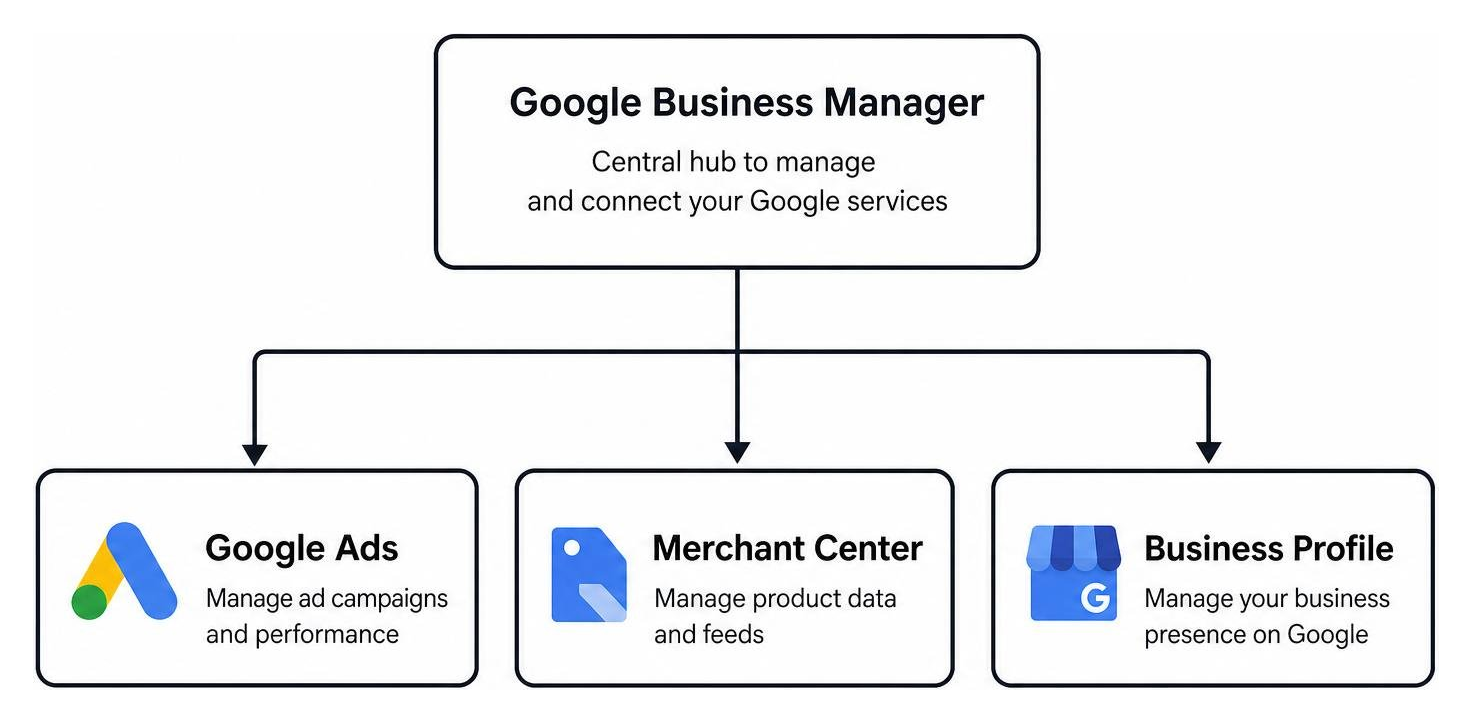
Within Google Business Manager, a “Super Admin” holds the highest control, linking services, managing user access, and sharing data. Linking Google Ads to Google Business Manager automates data sharing, allowing product feeds from Google Merchant Center to sync directly with your campaigns.
To understand this centralized hub, read the official guide to Learn about Business Manager – Google Merchant Center Help and review Linking Apps and services in Business Manager – Google Merchant Center Help .
Integrating Google Business Profile with Your Google Ads Business Manager
For local businesses in Batavia, Oswego, and Geneva, linking your Google Business Profile with your google ads business manager unlocks location assets in local search campaigns, displaying your address, map, phone number, and hours.
To link your Google Business Profile:
- Go to “Tools” > “Data Manager” in Google Ads.
- Find “Google Business Profile” and select “Manage & link.”
- Choose your profile or request access from the owner.
Once linked, you can filter locations to show relevant store info to nearby users. For a technical guide, see Product Linking: Link your Google Business Profile to Google Ads – Google Ads Help . To maximize ROI, explore our article on how to Master Your ROI with Google Ads Ad Manager.
Advanced Features: Access Control, Tracking, and Billing
A Google Ads Manager Account provides advanced administrative features designed for security and operational efficiency. Managing user permissions across multiple accounts is simplified through centralized access control.
Instead of adding users to individual child accounts, you can grant access directly at the manager level. You can assign specific permission tiers based on team roles:
- Administrative: Full control over users, billing, and campaign settings.
- Standard: Ability to edit campaigns, view reports, and manage daily operations.
- Read-Only: View performance metrics and pull reports without making changes.
- Billing: View and manage payment methods and invoicing.
To manage user access levels on a child account, the manager account must be explicitly granted “ownership” status within the child account’s settings. This prevents unauthorized changes and protects your client’s proprietary data.
Beyond access control, the manager account offers powerful automation and organization features. You can use custom labels to categorize child accounts by region, industry, or account manager.
Automated rules and alerts can be set up to monitor performance across all accounts. For example, you can create a rule to pause campaigns if they exceed a certain cost-per-acquisition (CPA) threshold, or send an email alert if an account’s daily spend drops to zero.
Finally, consolidated billing allows you to streamline your accounting. Qualified agencies and businesses can set up monthly invoicing, combining the spend of all linked accounts into a single monthly bill. This eliminates the administrative burden of tracking dozens of individual credit card transactions every month.
Troubleshooting Common Manager Account Issues
While the google ads business manager is incredibly powerful, you may occasionally run into technical hurdles. Knowing how to troubleshoot these common issues will keep your campaigns running smoothly.
Unauthorized Access Errors: If a team member receives an “Unauthorized access” error when trying to log in, verify that they are signed into the correct Google account associated with the manager dashboard. You should also check their user status in the “Access and security” settings to ensure their invitation is active and has not expired.
Linking Failures: If you are unable to link a child account, double-check the 10-digit Customer ID for typos. Additionally, ensure the child account does not already have the maximum number of manager accounts linked to it. An individual Google Ads account can be linked to a maximum of 5 manager accounts at one time.
Currency Mismatches: If your manager account uses USD but a child account uses EUR, you may see conversion discrepancies in your dashboard. Google automatically converts child account currencies for cross-account reporting, but billing and invoicing will still occur in the child account’s native currency unless consolidated billing is configured.
Account Limits: Standard manager accounts have a limit on the total number of active child accounts they can hold. This limit is determined by your total monthly ad spend over the last 12 months. If you hit your limit, you will need to increase your ad spend or unlink inactive accounts before adding new ones.
Frequently Asked Questions About Google Ads Business Manager
What is the difference between Google Ads Manager Account and Google Business Manager?
The Google Ads Manager Account (MCC) is an administrative tool built specifically to manage multiple Google Ads accounts, campaigns, and billing from a single login. Google Business Manager is a broader business hub that connects various Google services, including Merchant Center, Google Ads, and Google Business Profile, to enable cross-app data sharing and unified business management.
How many accounts can I link to a single Google Ads Manager Account?
The number of accounts you can link to a single Google Ads Manager Account depends on your historical monthly ad spend. Non-spending manager accounts are typically capped at 50 linked accounts, while active accounts with high monthly spend can scale to manage up to 85,000 accounts, including sub-manager accounts.
Can I change the time zone or currency of my manager account after creation?
No, the country, time zone, and currency selected during the creation of your Google Ads Manager Account are permanent and cannot be changed. It is critical to select these settings carefully during setup to ensure your reporting and billing align correctly with your business operations.
Conclusion
Managing multiple ad accounts does not have to be a logistical nightmare. By utilizing the google ads business manager framework, you can centralize your reporting, simplify your billing, and maintain strict security controls over all your digital advertising assets.
At RED27Creative, we build unified marketing engines that connect every part of your digital presence—from advanced SEO and custom web design to high-performing local paid search campaigns. Based in Geneva, Illinois, we serve businesses throughout Batavia, Aurora, St. Charles, Plainfield, Oswego, Naperville, and Chicago, helping them turn online visibility into consistent, qualified opportunities.
Whether you are a local business looking to dominate the search results in your neighborhood or a national brand scaling your digital footprint, our team has the experience to build data-driven systems that deliver real ROI.
Ready to streamline your advertising and accelerate your business growth? Grow your business with RED27Creative’s Google Ads Management Services and let us build a unified marketing strategy that works for you.

Kiel Tredrea
https://red27creative.comTop Marketing Agency • Web, SEO & Leads • RED27Creative