The Definitive Guide to Managing Google Shopping Ads
Foundations of Google Shopping Ads vs. Search Ads
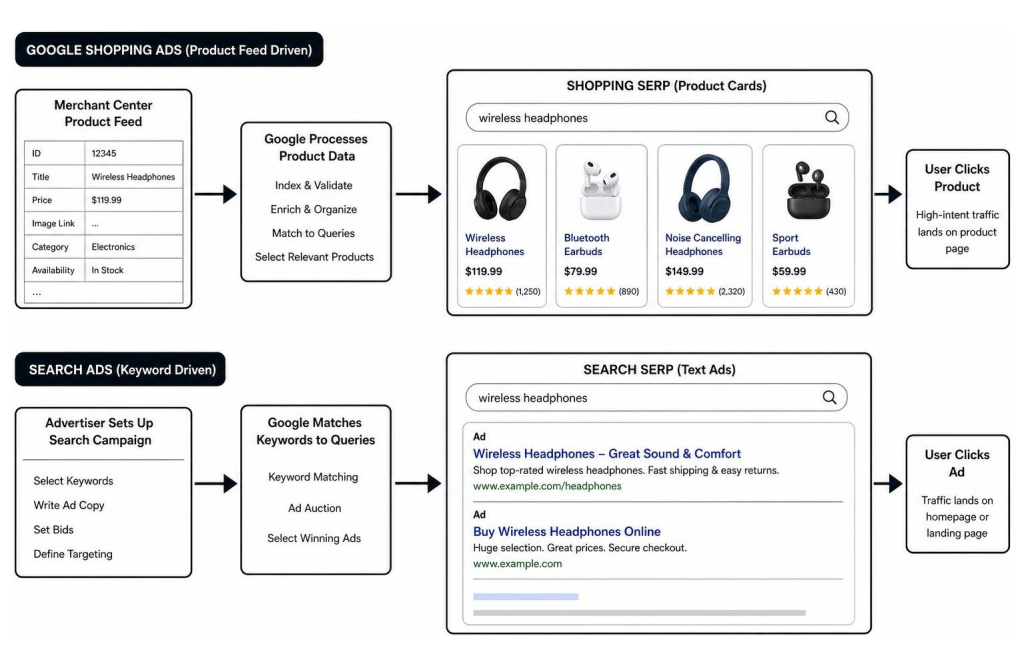
When e-commerce brands look to expand their paid reach, understanding the mechanics of visual advertising is essential. Google Shopping ads place your products directly at the top of the search engine results page (SERP), displaying vivid images, titles, pricing, and store ratings. This visual real estate captures high-intent shoppers right when they are ready to purchase.
By capturing attention immediately, visual product placements deliver significantly higher conversion rates compared to text-heavy placements. Implementing dedicated Google Paid Search Management allows us to capitalize on this visual advantage, ensuring that your products stand out against competing listings.
Key Benefits for Modern E-Commerce Businesses
Google Shopping provides exceptional visibility across multiple touchpoints, including Google Search, Images, YouTube, and Google Maps. Because shoppers see the product image and price before clicking, the traffic arriving on your store carries elevated purchase intent.
This pre-qualification process leads to higher click-through rates and improved return on ad spend (ROAS). By showcasing real-time pricing and store trust signals upfront, businesses can systematically scale sales while maintaining efficient customer acquisition costs.
Google Shopping vs Standard Keyword-Based Search Ads
Standard Search ads rely on bid management around user-selected search keywords and text ad copy. In contrast, Google Shopping ads do not use traditional keyword bidding. Instead, Google uses your product feed data to automatically match user queries with relevant items in your catalog.
This algorithmic matching system simplifies ad creation while maximizing query coverage. Because impressions are driven by structured catalog attributes, maintaining precise product titles, categories, and identifiers is critical for controlling cost per click (CPC) efficiency.
Streamlining Feed Architecture for Google Shopping Management
A successful Google Shopping campaign rests on a solid Google Merchant Center foundation. Setting up your account properly requires verifying your website domain, establishing accurate tax and shipping profiles, and building clean primary data sources.
Your primary data source acts as the core repository for your entire product inventory. When setting up your store feed, reviewing official guidelines like Create a product data source – Google Merchant Center Help ensures your product attributes meet strict data compliance standards right from the start.
Data Source Upload Methods and Platform Integrations
Merchants can upload product data through multiple flexible methods depending on catalog size and technical infrastructure. Small catalogs can rely on automated Google Sheets templates or direct file hosting (such as XML or CSV files) synced on a daily schedule.
For scaling e-commerce brands, direct platform integrations offer real-time synchronization. Connecting native apps through Shopify, WooCommerce, or BigCommerce automatically pushes inventory, price, and variant changes to Merchant Center within 24 to 48 hours.
Pairing robust platform feeds with expert E-Commerce Website Solutions keeps your technical storefront aligned with your paid advertising channels. For detailed step-by-step instructions on feed setup, consult How to upload your products to Merchant Center – Google Merchant Center Help.
Implementing Google Shopping Management via Merchant API
Managing massive product catalogs requires programmatic control beyond standard file uploads. Google’s modern Merchant API (the successor to the Content API for Shopping) offers direct developer access to manage accounts, product feeds, and local inventory programmatically.
The Merchant API supports modern REST and gRPC protocols, enabling fast, parallel execution across large multi-region inventories. It also unlocks exclusive Google features like Google Product Studio for AI-enhanced imagery, giving large enterprise catalogs a distinct competitive edge. You can learn more about programmatic integration in the official Merchant API – Google Merchant Center Help documentation.
Automation Tactics for High-Scale Feed Updates
Manual feed maintenance quickly becomes impractical as product lines expand. By enabling automatic item updates in Merchant Center, Google scans your landing page schema.org structured data to automatically correct minor price and availability discrepancies.
Developers can configure these settings programmatically through API endpoints, as outlined in Google’s guide to Enable automatic improvements | Content API for Shopping | Google for Developers.
Structuring Campaigns and Product Groups for Maximum ROAS

Once your catalog is approved in Google Merchant Center, campaign architecture dictates how effectively your budget is spent. Inside Google Ads, Shopping campaigns organize inventory into hierarchical product groups rather than ad groups with targeted keywords.
Proper account organization prevents unsegmented spend, where a small handful of low-margin or low-converting products consume the majority of your daily ad budget.
How Product Groups Work and Bidding Rules
Every Shopping campaign begins with a single default product group containing ‘All products’. To bid strategically, you must subdivide this master group into granular subsets based on specific feed attributes like Brand, Category, Product Type, Condition, or Custom Labels.
Google Ads allows inventory subdivisions up to 7 levels deep, with a maximum limit of 5,000 product groups per ad group. Bids can only be applied to bottom-tier, unsubdivided product groups.
It is also important to note that excluding a product group can take up to 48 hours to fully stop ad impressions across all visual networks. For additional technical details on structural limits, refer to Manage a Shopping campaign with product groups – Google Ads Help.
Advanced Segmentation Strategies for Google Shopping Management
To maximize efficiency, avoid grouping diverse SKUs under a single uniform bid. Segmenting products by conversion value, margin, or custom attributes allows you to allocate capital directly toward your highest-performing inventory.
We frequently implement custom labels (Custom Label 0 through 4) to group products by strategic business metrics:
- Custom Label 0: Profit Margin (e.g., High Margin, Low Margin)
- Custom Label 1: Seasonality (e.g., Summer, Holiday, Core)
- Custom Label 2: Liquidation Status (e.g., Clearance, Overstock)
- Custom Label 3: Price Point Tier (e.g., Under $25, $25-$100, Over $100)
- Custom Label 4: Historical Conversion Velocity (e.g., Top Seller, Low Performer)
By applying custom bid strategies or target ROAS goals to each custom label tier, businesses systematically eliminate wasted ad spend while scaling top sellers. Deploying granular structures with comprehensive PPC ROI Optimization ensures every advertising dollar is tied to measurable return.
| Segmentation Approach | Structural Setup | Bidding Precision | ROAS Risk Level | Primary Best Use Case |
|---|---|---|---|---|
| Single Broad Group | ‘All Products’ in one ad group | Single CPC bid across entire catalog | High risk of overbidding on non-converters | Testing small catalogs under 20 SKUs |
| Category Subdivision | Segmented by Product Type or Category | Bids adjusted per top-level category | Moderate risk if profit margins vary within category | Mid-size stores with uniform profit margins |
| Granular Attribute Segmentation | Custom Labels + Brand + SKU-level subdivisions | Tailored CPC / Target ROAS per profit tier | Low risk; maximum budget control | High-volume catalogs with varied pricing and margins |
Goal-Oriented Campaign Optimization Strategies

Modern google shopping management requires aligning campaign structures with clear financial outcomes. Whether your priority is accelerating online storefront revenue, clearing physical store inventory, or establishing dominant brand visibility, campaign settings must mirror your primary growth targets.
Combining standard Shopping campaigns with automated Performance Max strategies provides comprehensive coverage across Search, Discover, YouTube, Display, and Maps.
Driving Online Sales and High ROAS
To maximize online storefront sales, leverage Google’s Smart Bidding algorithms—specifically Target ROAS (tROAS) or Maximize Conversion Value. Smart Bidding analyzes hundreds of real-time contextual signals, including user device, location, time of day, and browsing history, to adjust bids for every individual auction.
To maintain control over automated bidding, regularly audit negative search terms and feed quality. Partnering with dedicated Google Ads Management Services ensures automated strategies remain grounded in true bottom-line profitability.
Maximizing In-Store Foot Traffic with Local Inventory
For brick-and-mortar retailers, Google Shopping offers Local Inventory Ads (LIA) to drive foot traffic directly to physical storefronts. Local inventory feeds display real-time product availability, store distance, and local pickup options to nearby mobile searchers.
When shoppers search for products ‘near me’ on Google Search or Google Maps, local listings showcase visual badges confirming the item is in stock nearby. This omnichannel bridge turns online search volume into immediate local store foot traffic and point-of-sale revenue.
Troubleshooting Common Google Shopping Management Challenges

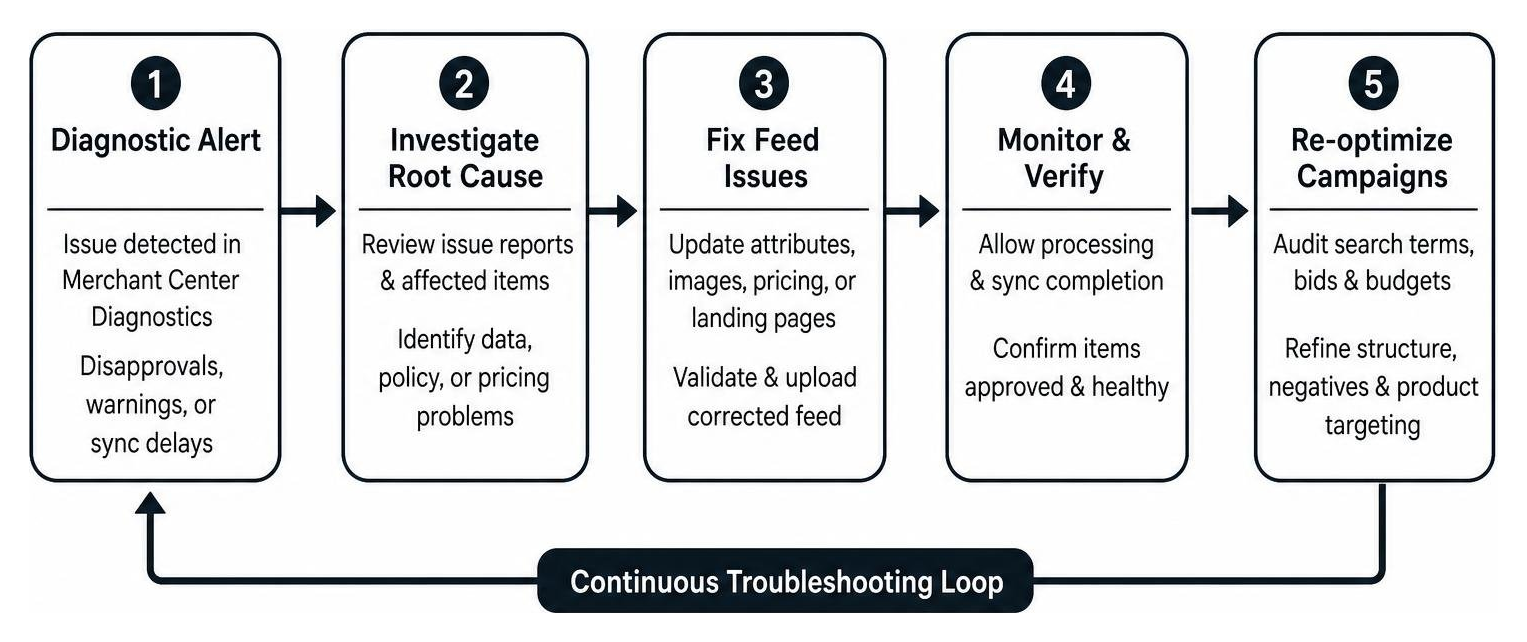
Managing Google Shopping campaigns inevitably involves technical hurdles, from sudden item disapprovals to escalating CPCs. Maintaining account health requires proactive feed monitoring and swift resolution of diagnostic warnings before performance suffers.
Resolving Account Disapprovals and Data Sync Delays
When product disapprovals occur, navigate to the Diagnostics tab in Google Merchant Center to download detailed error issue reports. Common triggers include missing required attributes (like GTINs or MPNs), promotional text overlays on primary product images, or price mismatches between feeds and store landing pages.
When updating or replacing data sources, always overlap new feed uploads before removing old sources to preserve item IDs and historical performance data. For deeper step-by-step instructions on troubleshooting feeds, consult Manage your data sources – Google Merchant Center Help.
Mitigating Escalating CPCs and Unsegmented Spend
Escalating CPCs often result from aggressive competition or broad, unsegmented campaign structures where low-converting search terms siphon budget away from top performers.
To control rising costs:
- Conduct regular Search Term audits to add irrelevant queries as negative keywords.
- Review Click Share and Impression Share metrics to identify underfunded high-ROAS product groups.
- Exclude low-performing SKUs generating high click volume but zero conversion value.
- Enhance product titles and attributes to improve feed relevancy and Quality Score metrics.
Mastering Google Shopping Strategy for Long-Term Growth
Managing Google Shopping ads successfully requires a balance of clean product feed engineering, disciplined campaign structure, and strategic bid optimization. By maintaining an accurate Google Merchant Center catalog, segmenting inventory by profit margins, and leveraging advanced Smart Bidding tactics, e-commerce brands can turn visual ad placements into a predictable engine for online revenue.
Whether you are seeking to resolve account disapprovals, scale existing ROAS, or unify online and local inventory, our team brings over two decades of proven digital expertise to every campaign. Ready to transform your product catalog into a high-converting growth channel? Schedule a Strategy Call with RED27Creative today.
Frequently Asked Questions About Google Shopping Management
What is the difference between Google Shopping ads and standard Search ads?
Google Shopping ads are visual product listings powered by Merchant Center catalog feeds, showcasing product images, prices, titles, and store details. Standard Search ads rely primarily on text copy and targeted keywords. Shopping ads allow consumers to evaluate key product details before clicking, resulting in higher commercial intent.
How long does it take for product feed updates in Merchant Center to sync with Google Ads?
Standard product feed updates uploaded via hosted files, Google Sheets, or third-party platform integrations typically take 24 to 48 hours to fully process and sync into active Google Ads campaigns. However, product deletions generally propagate to live Shopping ads within approximately one hour.
Why are products showing as Excluded in Google Ads Shopping campaigns?
Products appear as ‘Excluded’ when they are not included in any active product group subdivision, or when explicit bid exclusions have been applied. Mismatched inventory filters between Merchant Center and Google Ads, item disapprovals, or missing product attributes can also cause products to show as excluded from serving.

Kiel Tredrea
https://red27creative.comTop Marketing Agency • Web, SEO & Leads • RED27Creative