Who’s the Boss? A Guide to Google Ads Admin and Manager Accounts

Why Google Ads Admin Access Is the Foundation of Your Account
Google Ads admin access is the highest permission level in a Google Ads account. It controls who can manage campaigns, edit billing, verify your business, and access your tracking tags.
Here is a quick breakdown of what admin access means and how it compares to other roles:
| Access Level | Can Edit Campaigns | Can Manage Billing | Can Grant Admin Access | Can Manage Google Tags |
|---|---|---|---|---|
| Admin | Yes | Yes | Yes | Yes (full) |
| Standard | Yes | Yes | No | Publish only |
| Read-only | No | No | No | Read only |
| Billing | No | Yes | No | No |
| Email-only | No | No | No | No |
Getting this wrong has real consequences. If your Google Ads account has only one administrator and that person becomes unavailable, you could lose access to your conversion tracking tags entirely — and Google will flag it with a Tag Diagnostics warning.
Whether you are a business owner setting up your first account, a marketing director onboarding an agency, or managing dozens of client accounts, understanding how Google Ads admin roles work is not optional. It is how you protect your ad spend, your data, and your results.
I’m Kiel Tredrea, founder of RED27Creative, and I’ve spent more than 20 years helping B2B and service-based businesses build and manage high-performing Google Ads admin structures that protect account integrity and drive measurable growth. In the sections below, I’ll walk you through everything you need to know — from granting access to securing it at scale.
Google ads admin terms to learn:
Understanding the Role of a Google Ads Admin
At its core, a Google Ads admin is the ultimate gatekeeper of your digital advertising ecosystem. Holding this role means you have the power to make sweeping changes to campaigns, financial profiles, and user permissions.
The primary responsibilities of an administrator extend far beyond simply pausing a low-performing keyword or adjusting a budget. An admin is responsible for the overall security, compliance, and structural integrity of the account. This includes adding new team members, adjusting existing permissions, and removing users who no longer require access.
Furthermore, full administrative permissions are strictly required to start and complete Google’s mandatory Advertiser Verification process. Without an admin to complete this verification, your campaigns run the risk of being paused by Google.
Because admin access grants total control, managing these permissions correctly is the bedrock of secure Google Ads Account Management. We always advise businesses in the Chicago suburbs—from Geneva, IL to Naperville, IL—to treat administrative login credentials with the same level of care as their business bank accounts.
Comparing Google Ads Access Levels
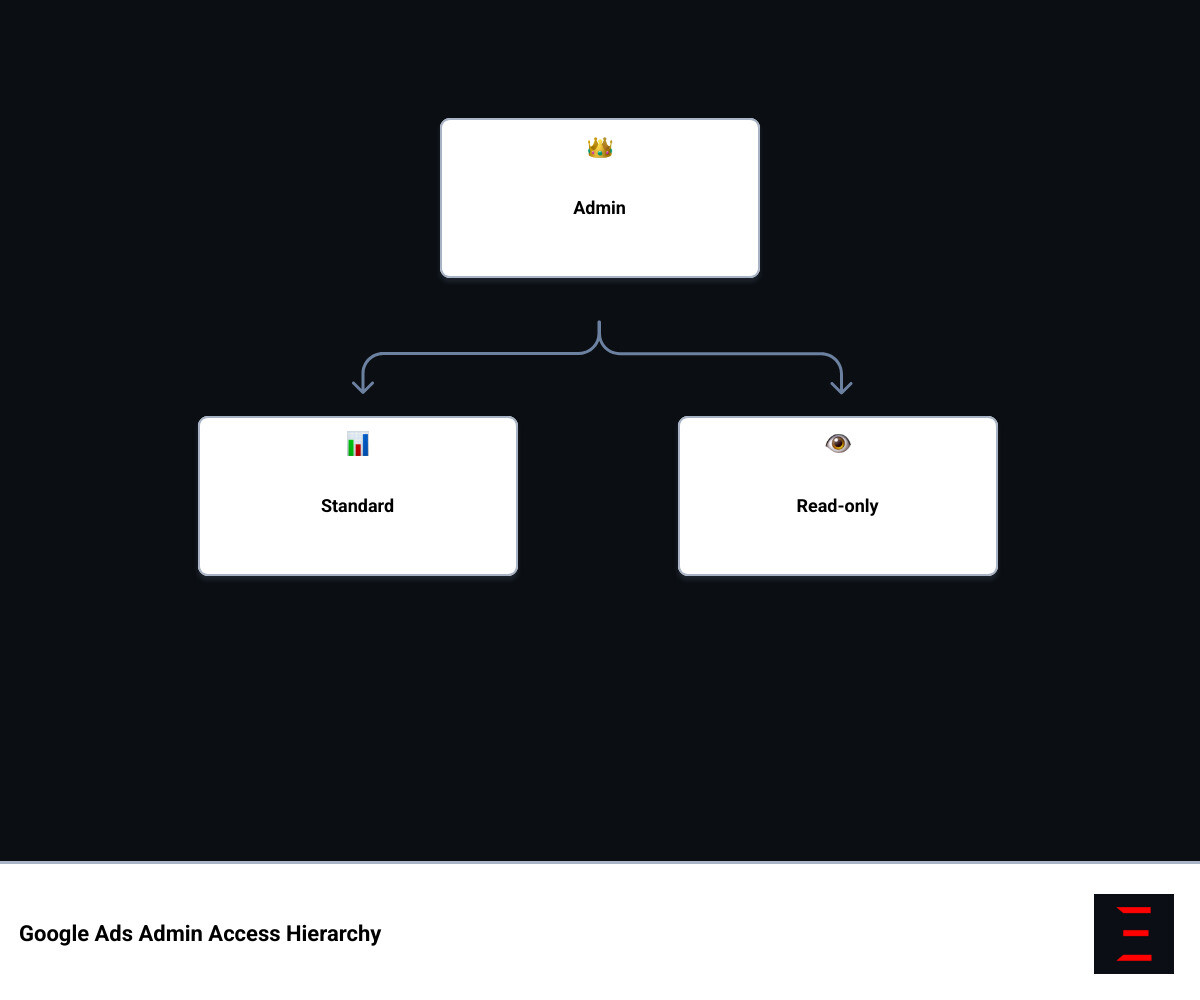
To keep your account secure, Google Ads features five distinct access levels: Admin, Standard, Read-only, Billing, and Email-only. Each role is designed to fit a specific business function, allowing you to delegate tasks without granting unnecessary control.
Understanding these differences is crucial when deciding who gets what role. For a detailed breakdown of how these permissions operate, you can consult the official guide on About access levels in your Google Ads account – Google Ads Help .
Let’s look closer at how these roles function in practical day-to-day scenarios:
- Admin Access: This is the master key. Admins can view and edit all parts of an account, manage billing, change user access levels, and complete advertiser verification.
- Standard Access: This is the ideal role for internal marketing managers and external PPC agencies. Standard users can create, edit, and optimize campaigns, view reports, and modify billing. However, they cannot grant access to new users or change existing user roles.
- Read-only Access: Perfect for business stakeholders, executive leadership, or external consultants conducting an account audit. Read-only users can view performance data and reports but cannot make any changes to campaigns, budgets, or settings.
- Billing Access: Designed specifically for accountants and finance departments. Users with Billing access can view billing reports, update credit card information, and make payments. They cannot view or edit active ad campaigns.
- Email-only Access: This role is built for team members who only need to receive automated reports, alerts, and notifications directly in their inboxes without logging into the platform itself.
How to Grant, Edit, and Remove Access
Managing user access is a dynamic process. As your business grows, your team changes, and your agency partnerships evolve, you will regularly need to update who has access to your data. Proper access control ensures that only authorized personnel can touch your active campaigns.
Step-by-Step: How to Grant Google Ads Admin Access
Inviting a new user to your Google Ads account is a straightforward process, but it must be initiated by an existing administrator. Before you begin, ensure the person you are inviting has a registered Google Account (such as a Gmail address or a Google Workspace account).
Here is how to grant access step-by-step:
- Log into your Google Ads account.
- Navigate to the left-hand menu, click on the Admin icon, and select Access and security.
- Click the blue plus (+) button to add a new user.
- Enter the invitee’s email address.
- Select the desired access level (choose Admin only if they require full account control).
- Click Send invitation.
The invited user will receive an email containing an invitation link. Once they accept the invitation, their status will update from “Pending” to “Active” in your dashboard. For more details on managing invitations, refer to the official instructions on how to Manage access to your Google Ads account – Google Ads Help .
How to Edit or Remove a Google Ads Admin User
When team members change roles or transition out of your company, you must immediately update or revoke their access to prevent security leaks.
To edit a user’s access level or remove them entirely:
- Go to Admin > Access and security.
- Locate the user you want to modify in the list of active users.
- To change their role, hover over their current access level in the Access level column, click the dropdown arrow, and select their new role.
- To remove the user entirely, locate their name and click Remove access in the Actions column.
Once removed, the user immediately loses all visibility and control over the account, though your campaigns and active ads will continue running normally. Managing these transitions smoothly is key to maintaining a clean and secure setup. For more advanced strategies on managing your marketing campaigns, check out our guide on Mastering Your Accounts: The Google AdWords Campaign Manager.
Managing Access at Scale with Google Ads Manager Accounts (MCC)
If you are managing multiple Google Ads accounts, logging in and out of individual profiles is incredibly inefficient. This is where a Google Ads Manager Account (formerly known as My Client Center, or MCC) becomes essential.
An MCC acts as an umbrella dashboard, allowing you to link and manage multiple sub-accounts from a single login. In 2026, Google allows a single email address to be associated with up to 20 Google Ads accounts directly. However, by using a Manager Account, you can consolidate hundreds of accounts into one centralized workspace.
To learn more about setting up a centralized dashboard, explore our guide on One Dashboard to Rule Them All: A Guide to Google Ads Business Manager. For deep technical support on managing users at the manager level, you can also read Manager Accounts (MCC): Manage users and access levels for your manager account – Google Ads Help .
How Agencies Request Access to Client Accounts
When we onboard a new client at RED27Creative, we never ask for their direct login passwords. Instead, we request access professionally using our Manager Account. This is the safest way for agencies and freelancers to collaborate with clients.
The process is simple and secure:
- The agency requests the client’s unique 10-digit Google Ads Customer ID (CID).
- Inside the agency’s Manager Account, they navigate to the Accounts tab, click the plus (+) button, and select Link existing account.
- The agency enters the client’s CID and sends the link request.
- The client receives an email notification and a pending request under Admin > Access and security > Managers inside their own account.
- Once the client approves the request, the agency gains secure access.
This workflow keeps the client in complete control of their account ownership. To learn more about maximizing your return on investment using these manager systems, read our article on how to Master Your ROI with Google Ads Ad Manager.
Automating Access and Scripts at the Manager Level
For large-scale operations, manual user management can become overwhelming. Fortunately, developers and advanced administrators can use the Google Ads API to programmatically retrieve, modify, or remove user access across multiple child accounts.
Additionally, Google Ads scripts allow you to write custom JavaScript to automate routine management tasks. These scripts run automatically but are subject to strict execution limits. Standard account scripts will time out if they run longer than 30 minutes, while certain manager account scripts are granted up to 60 minutes before timing out.
To explore how to build these automated systems, check out the developer documentation on Manage User Access | Google Ads API | Google for Developers or read Google’s guide on Using scripts to make automated changes – Google Ads Help .
Critical Security Best Practices for Google Ads Administrators
Securing your Google Ads account is not just about choosing strong passwords. Because your ad account is directly tied to your business’s financial profiles and conversion tracking data, a security breach can cause immediate financial damage.
To keep your account secure, we recommend implementing these strict administrative standards:
- Enforce 2-Step Verification: Make two-factor authentication mandatory for all users accessing your Google Ads account. This prevents unauthorized access even if a team member’s password is compromised.
- The “Two-Admin” Rule: Never rely on a single administrator. If your account has only one administrator and that user leaves your company or becomes unavailable, you may lose access to your tracking tags. Always maintain at least two active admin users to ensure account continuity.
- Audit Permissions Regularly: Conduct quarterly audits of your active users. Remove past employees, inactive agencies, or outdated consultants immediately.
- Adhere to the Principle of Least Privilege: Only grant the minimum level of access required for a user to perform their job. An external copywriter does not need Standard access; Read-only is often more than enough.
By protecting your admin roles, you protect your business’s digital assets. For a complete overview of account security and campaign optimization, read our Google Ads Management Complete Guide. To understand how access levels map directly to website tracking, consult the guide on how to Manage your Google tag users – Google Ads Help .
Frequently Asked Questions about Google Ads Administration
What should I do if I am the only admin and lose access to my Google Ads account?
If you are the sole administrator and lose access, you must contact Google Ads support to initiate the account recovery process. To prevent losing access to your Google tags and campaigns, Google recommends always having at least two active administrators on your account.
Can a Google Ads admin manage billing and payments profiles directly?
Yes, a Google Ads admin can view billing reports and update payments profile details like tax IDs. However, adding or removing users from the payments profile itself requires the primary contact to submit a request to Google Ads support with the Payments Profile ID.
How does Google Ads admin access affect Google tag and conversion tracking?
An admin automatically inherits full administrator and publishing permissions on the Google tag. If your account has only one administrator, you risk losing access to your tags and conversion tracking if that user becomes unavailable, which triggers a Tag Diagnostics warning.
Conclusion
Managing your Google Ads admin settings correctly is the foundation of a secure, scalable, and successful digital marketing strategy. By setting up clear user roles, enforcing strict security standards, and utilizing manager accounts when scaling, you protect your ad spend and ensure your business keeps growing.
At RED27Creative, we build data-driven systems that connect every part of your marketing—from web design and advanced SEO to high-converting Google Ads campaigns. Operating out of Geneva, Illinois, we are proud to serve businesses throughout Batavia, Aurora, St. Charles, Plainfield, Oswego, Naperville, and the greater Chicago area.
If you are ready to secure your accounts, eliminate wasted ad spend, and scale your business with marketing strategies built for real growth, we are here to help. Contact us today to schedule a consultation, or explore our specialized RED27Creative Google Ads Management Services to see how we can turn your traffic into measurable results.

Kiel Tredrea
https://red27creative.comTop Marketing Agency • Web, SEO & Leads • RED27Creative